Using Token2 FIDO2 security keys as the default sign-in option for Windows (Registry modification method)
Last updated 2026-07-18
FIDO2 based Passwordless technology allows users to use a USB key to sign in to Azure AD without using passwords.
Once enabled, the users will be able to sign in to their accounts and log onto their Azure-joined machines using FIDO2 Security keys.
The access is still protected by two factors in this case:
1) having physical access to the security key and
2) PIN or Fingerprint (on devices with biometrics support) configured on the FIDO2 Security keys
• A Token2 FIDO2 key, and a user with FIDO2 key associated (check this article for instructions on enrolling FIDO2 security keys)
• A local administrator privilege on the machine
Once enabled, the users will be able to sign in to their accounts and log onto their Azure-joined machines using FIDO2 Security keys.
The access is still protected by two factors in this case:
1) having physical access to the security key and
2) PIN or Fingerprint (on devices with biometrics support) configured on the FIDO2 Security keys
The guide below will walk you through the steps required to enable Token2 FIDO2 Security keys as the default sign-in option for Windows. Please note that this guide uses local registry modifications method and does not require Intune. Intune-based method is described here.
Requirements:
• An Azure-joined Computer with Windows 10 - 1903 or higher.• A Token2 FIDO2 key, and a user with FIDO2 key associated (check this article for instructions on enrolling FIDO2 security keys)
• A local administrator privilege on the machine
Check Azure AD joining status
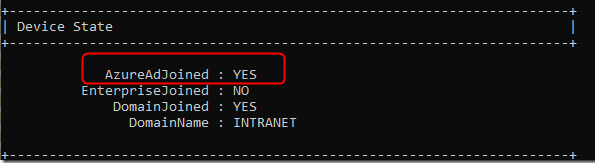
To check if the devices are Azure AD joined or not, you can open cmd and run dsregcmd /status
If the device is Azure AD joined, the status for AzureAdJoined=YesTo enable security key sign-in using Group Policy, you can follow these steps:
- Press the Windows key and type
gpedit. - Right-click on the result and choose "Run as administrator."
- When prompted to run the app in elevated mode, select "Yes."
- Go to
Computer Configuration > Administrative Templates > System > Logon.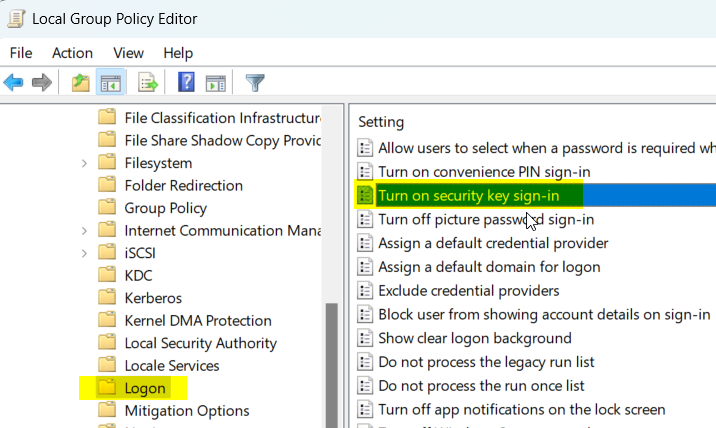
- Double-click on "Turn on security key sign-in" and choose "Enabled." Then click "OK."
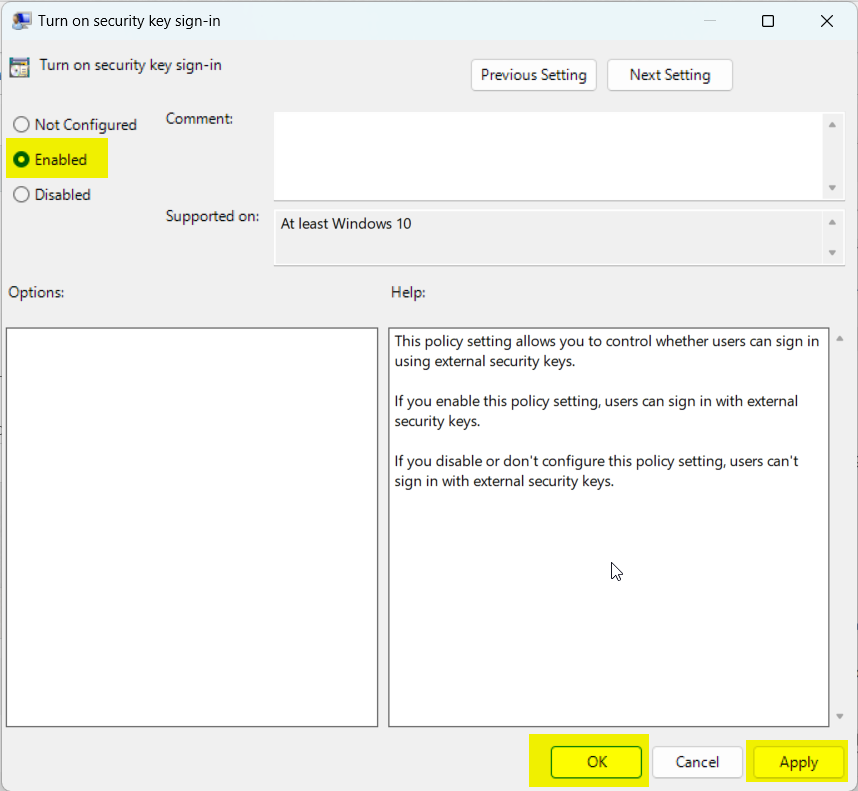
- Close the Group Policy Editor and restart your computer to apply the changes
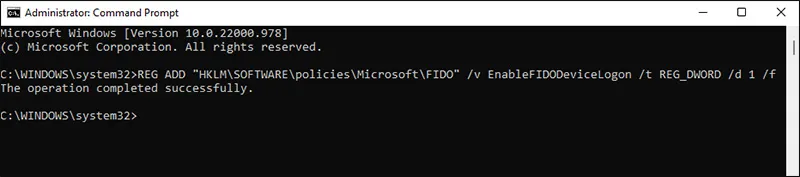
The same operation can be achieved using the command below:
REG ADD "HKLM\SOFTWARE\policies\Microsoft\FIDO" /v EnableFIDODeviceLogon /t REG_DWORD /d 1 /f