Using Token2 FIDO2 Security Keys for Adobe
Last updated 2026-07-18
 Adobe Inc. is an American multinational software company best known for its products related to creative software and digital media.
 It offers a wide range of programs from web design tools, photo manipulation and vector creation, through to video/audio editing, mobile app development, print layout and animation software.
In this guide, we will outline the steps required to configure Token2 Security keys as a passkey authentication with Adobe account.
Passkeys let you sign in to your account securely without using a password.
Requirements:
• An access to the Adobe account.• Admin access to enable security keys (not required if security keys are already enabled)
• Modern browser supporting security keys.
• A Token2 FIDO security key.
Set up a passkey
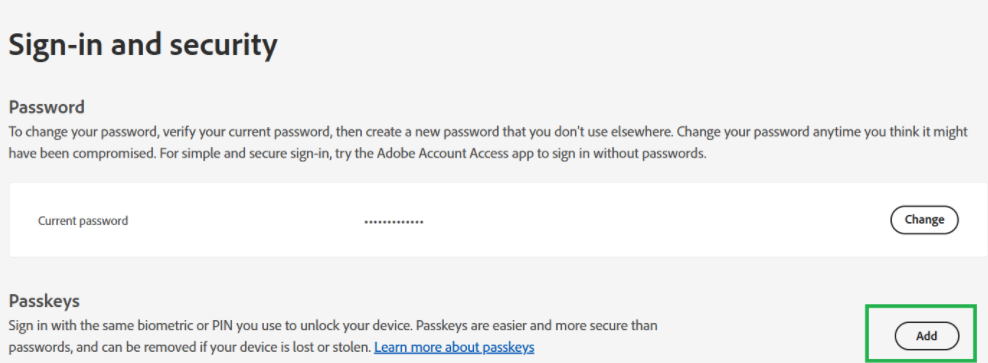
1. Go to https://account.adobe.com/security.2. Under Sign-in and security > Passkeys, select Add.
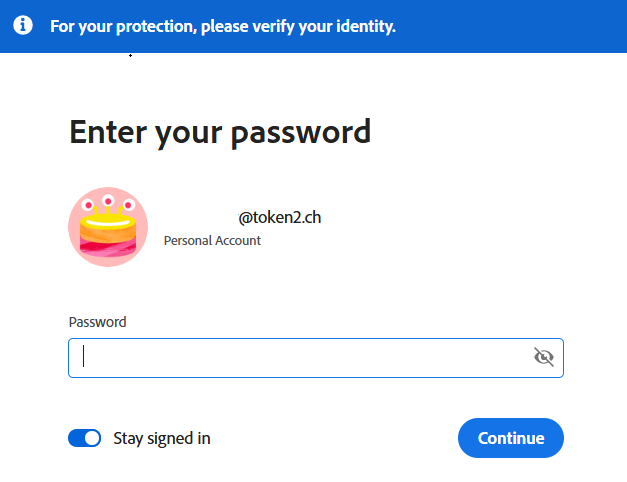
3. You will then be prompted to enter your account password to continue.
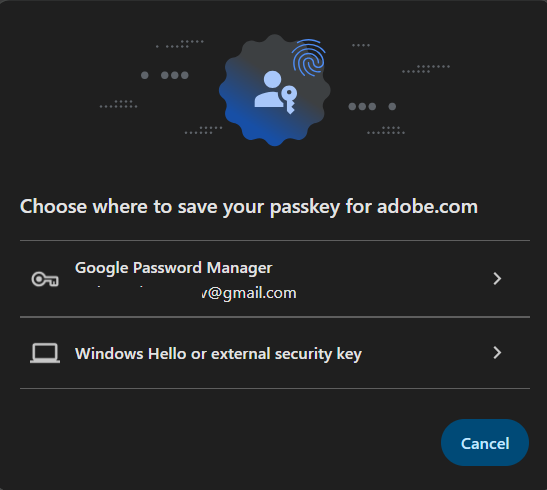
4. Insert a security key and select 'Windows Hello or an external security key' from the available options.
5. Adobe will start to identify the inserted security key.
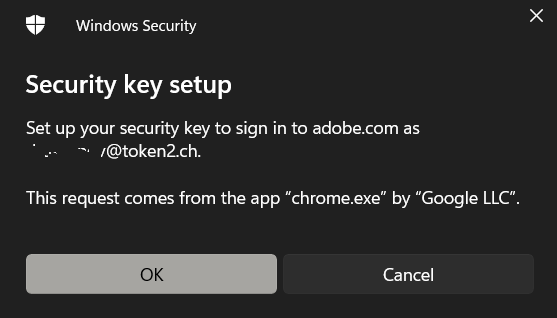
If you have set up a PIN code on it, you will be prompted to type it.
6. Then you need to press the button on the security key to complete registration.
Note: Security keys differ in the exact instructions to activate them. Your key may require a tap or button press to activate registration.
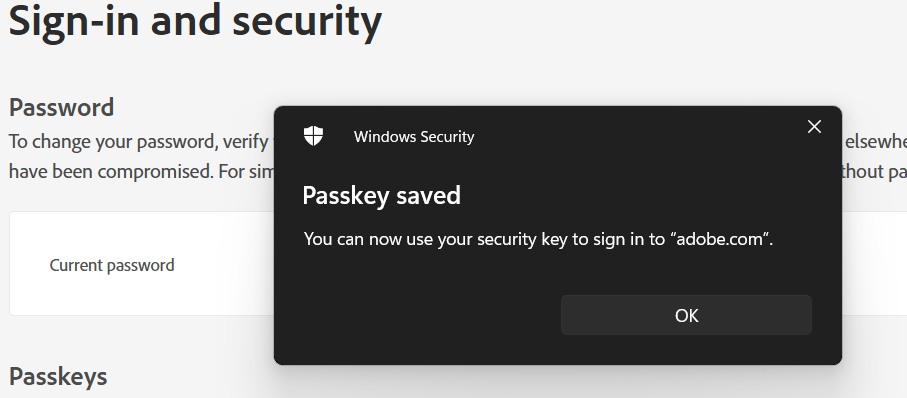
7. After successful enrollment, you will see the passkey in the Passkeys section.

Use a passkey to login
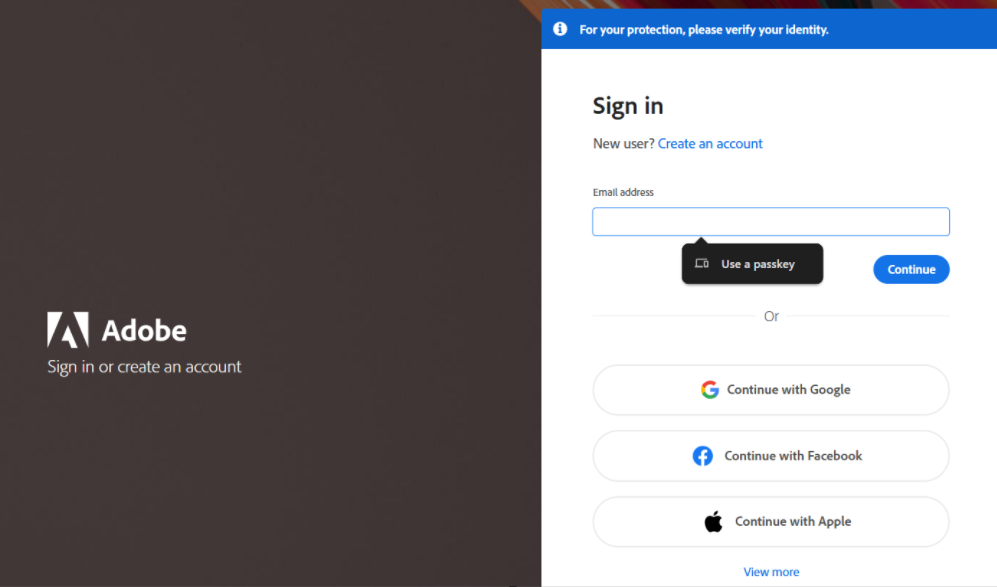
The security key is now ready to use with your Adobe account as a passkey. When you try to log in, navigate to the 'Email Address' field, and a 'Use a Passkey' button will appear. Insert the security key and click 'Use a Passkey.' Follow the on-screen instructions, and you'll be able to log in.